Billing
With usage-based billing, you pay only for what your organization uses: devices, users, data storage and device actions. Each month ends with a bill. This guide walks you through checking the cost of the current period, setting the details printed on your invoices and reading, downloading and paying your bills on time.
Note
Billing is under Organization in the sidebar. Only users with the Super Admin role can see it. It’s also shown only when CALM and billing are enabled for your organization.
On the Billing page you can:
Current period
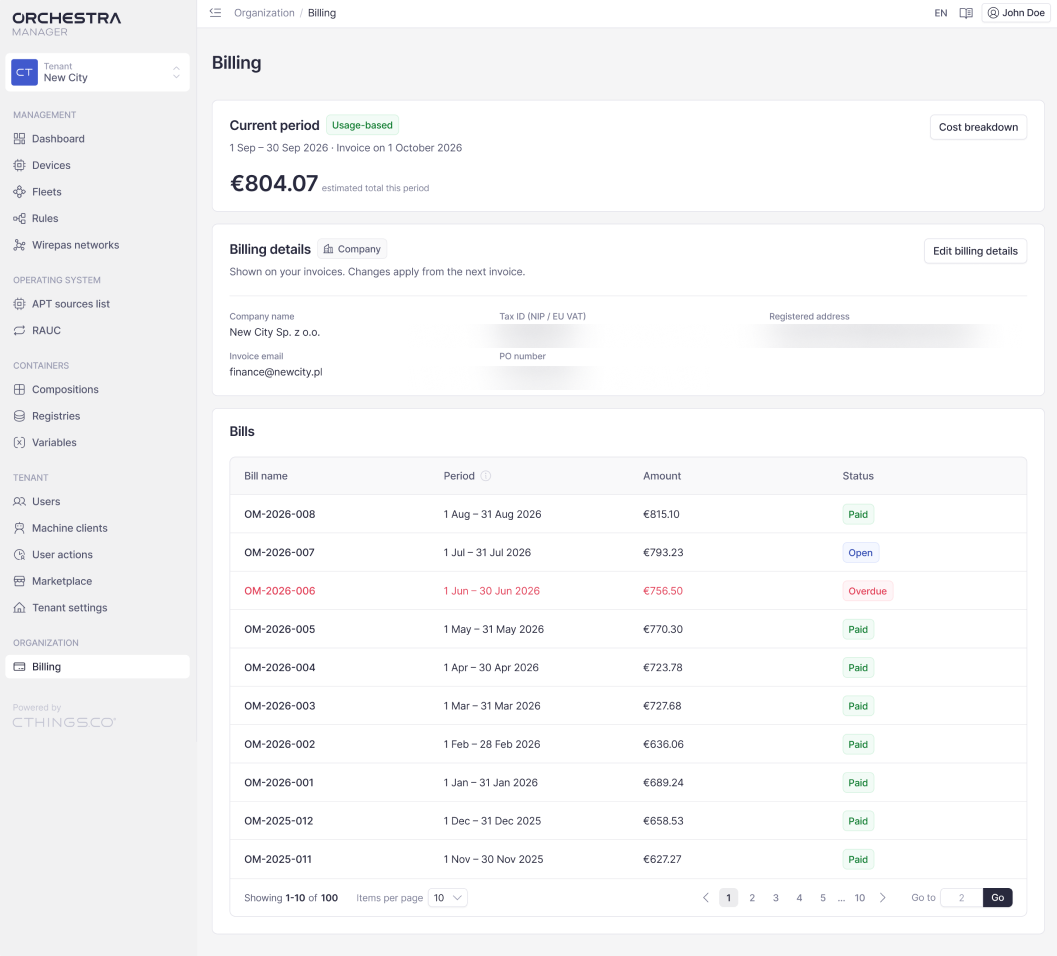
The Current period card shows the month you’re being billed for now:
The dates of the period and the day you get the invoice for it, for example 1 Sep – 30 Sep 2026 · Invoice on 1 October 2026
The estimated total, which is what you’ve used so far in this period. It grows as you use more, and the final amount is on the bill at the end of the period
The Usage-based label, which means you pay for what you use, not a fixed fee
To see what the amount is made of, click Cost breakdown.
Billing details
The Billing details card shows the details printed on your invoices. The label next to the title shows whether you’re billed as a Company or an Individual. Changes apply from the next invoice. Invoices you already have don’t change.
To change your billing details:
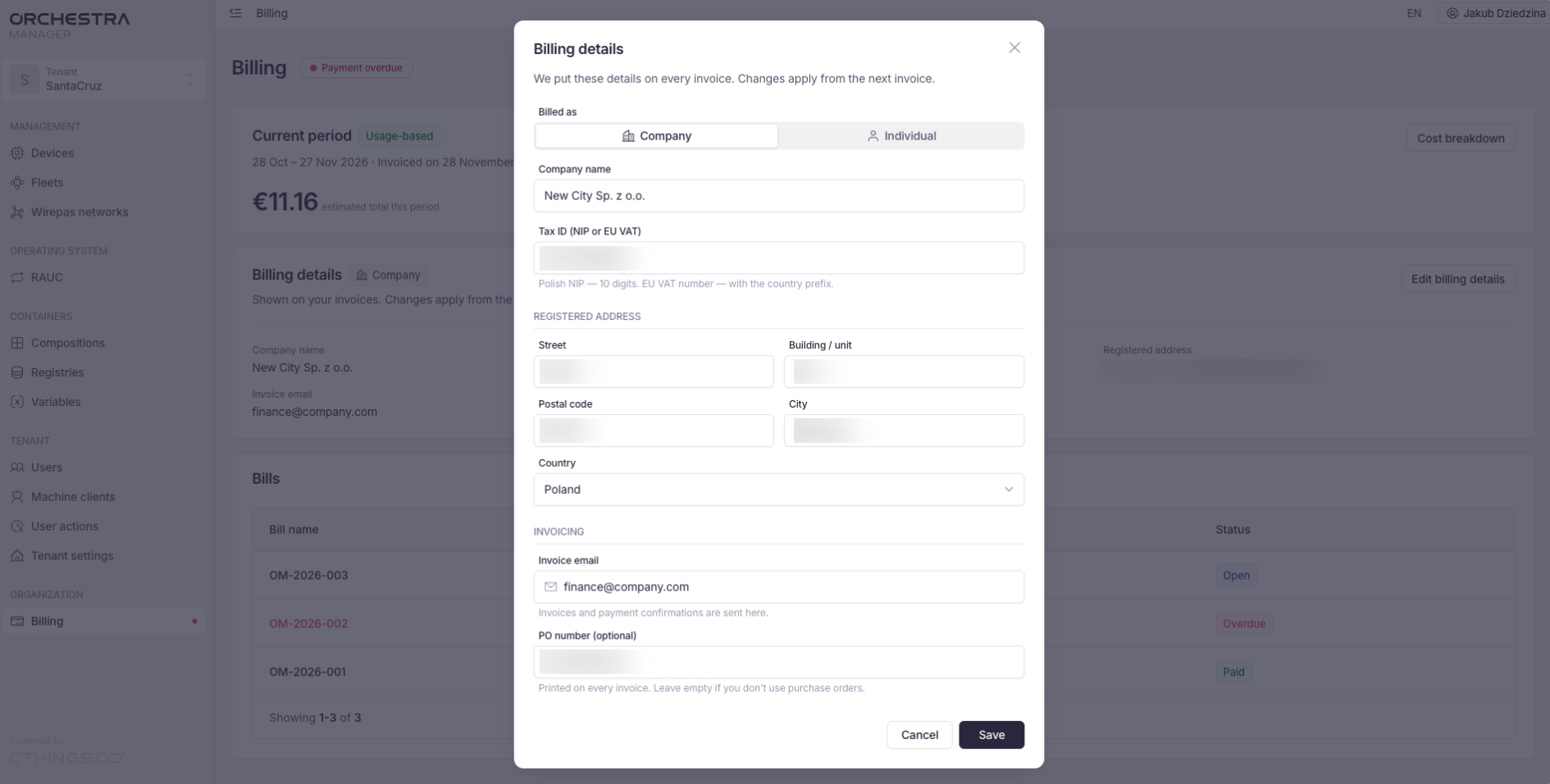
Click Edit billing details.
In Billed as, choose Company or Individual.
Fill in the fields. For a company:
Company name
Tax ID (NIP or EU VAT): a Polish NIP has 10 digits. An EU VAT number starts with the country prefix, for example
PL5252812345Registered address: Street, Building / unit, Postal code, City and Country
Invoice email: invoices and payment confirmations are sent to this address
PO number (optional): your purchase order number, printed on every invoice. Leave it empty if you don’t use purchase orders
For an individual, fill in your full name, address and invoice email.
Click Save.
Bills
The Bills table lists your bills, newest first. For each bill you can see:
Bill name, for example
OM-2026-008Period: the month the bill is for
Amount
Status
Status |
Meaning |
|---|---|
Open |
The bill is issued and waiting for payment |
Paid |
The bill is paid |
Overdue |
The bill wasn’t paid by its due date. The whole row is shown in red |
The table shows 10 bills per page. To show more, change Items per page. To jump to another page, enter its number in Go to and click Go.
Check and download a bill
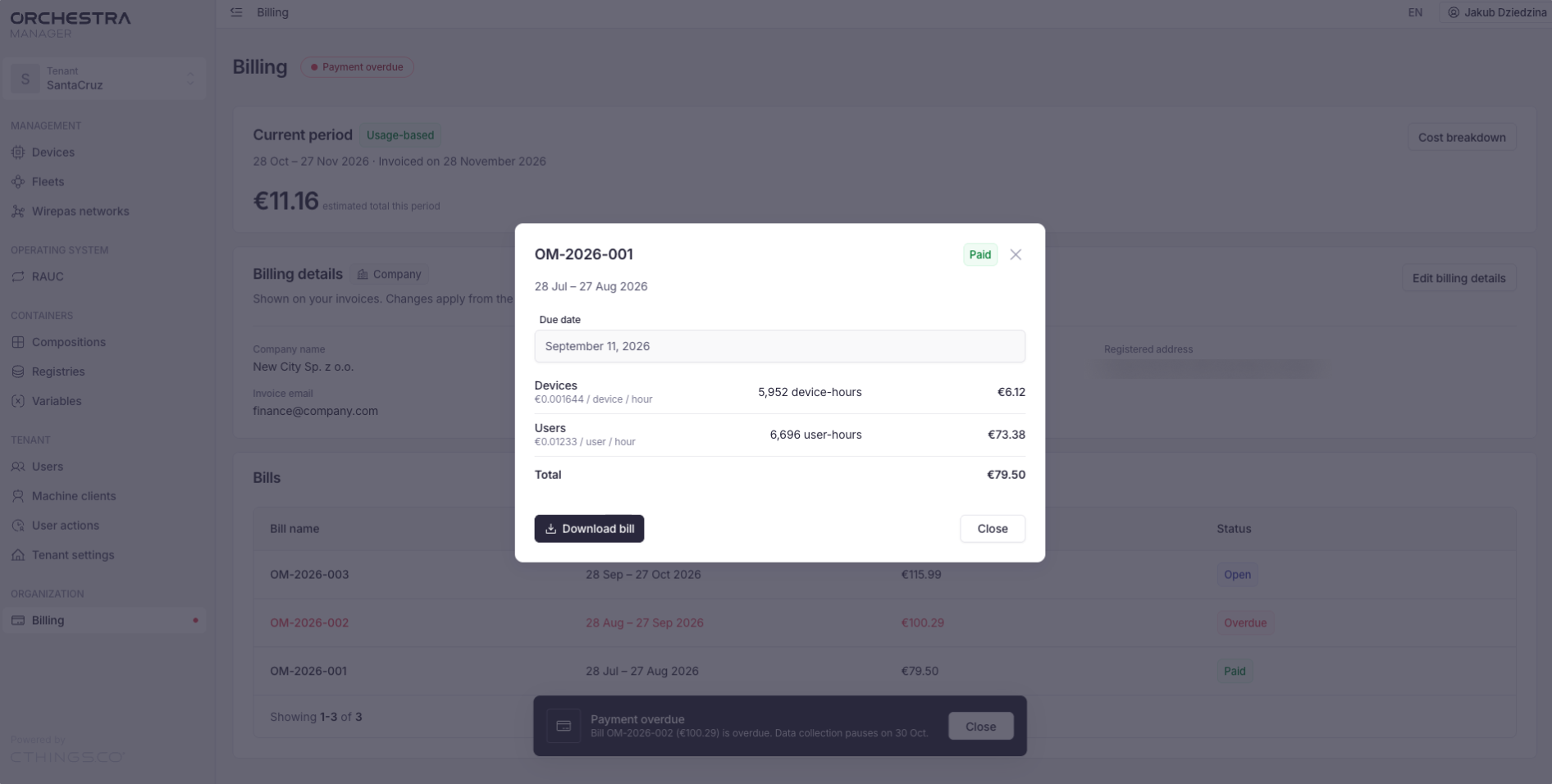
Click a bill in the Bills table.
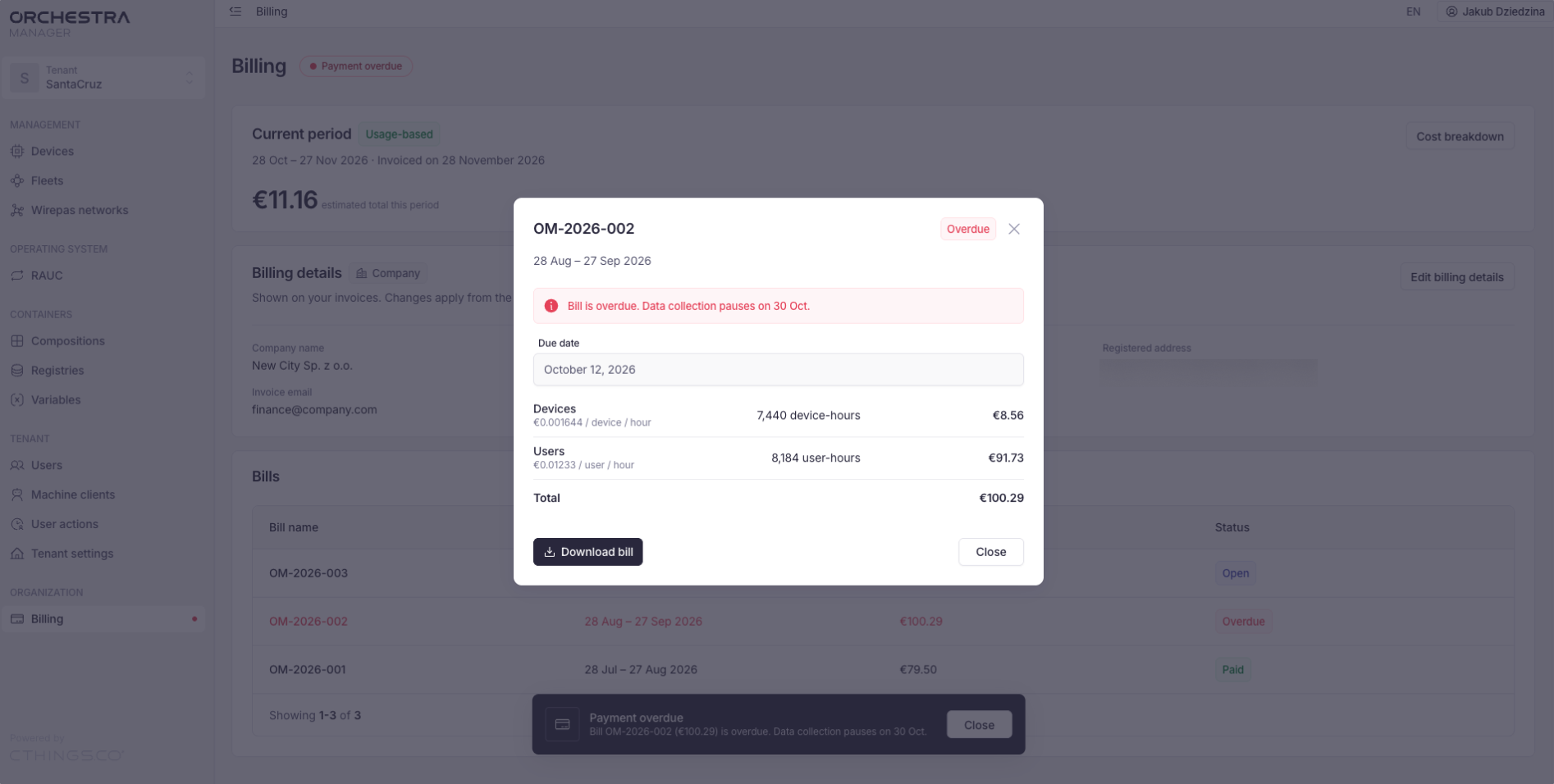
In the window that opens, check the bill. It shows:
The status and the period of the bill
Due date: the day by which the bill must be paid
Free tier: the usage included at no cost every month. Only what you use above it is charged
One row for each thing you pay for, with its price, how much you used and the cost:
Devices, counted in device-hours. One device-hour is one device for one hour
Users, counted in user-hours. One user-hour is one user for one hour
Data storage, counted in GB-hours. One GB-hour is 1 GB stored for one hour
Device actions, priced per 1,000 actions
Total: the amount to pay
To save the bill, click Download bill.
Click Close.
Overdue bills
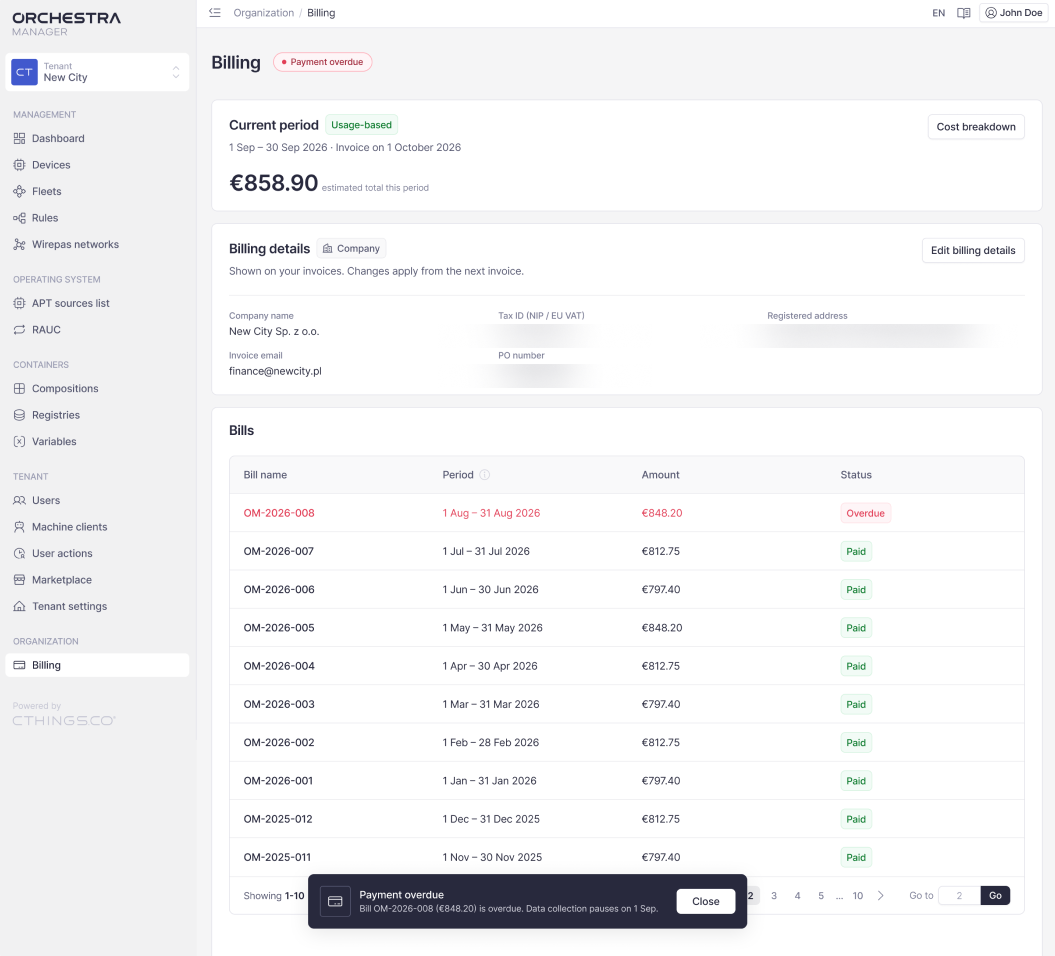
When a bill isn’t paid by its due date, Orchestra Manager shows it in a few places:
A red Payment overdue label next to the Billing title
A Payment overdue message at the bottom of the page, with the bill name, the amount and the day data collection pauses
The bill’s row in the Bills table, shown in red with the Overdue status
When you open an overdue bill, a red message at the top shows the day data collection pauses, for example Bill is overdue. Data collection pauses on 28 Jul.
Warning
If you don’t pay an overdue bill by the day shown, data collection pauses. Pay the bill before that day to keep collecting data from your devices.
Troubleshooting
I can’t see Billing in the sidebar
You need the Super Admin role. Ask a Super Admin in your tenant to change your role. See Edit user’s role
Billing may not be enabled for your organization. Contact CTHINGS.CO support
My new billing details aren’t on my invoice
Changes apply from the next invoice. Invoices issued before the change keep the old details