Users
Users are the people who work in your tenant. Each user has one of four roles, which decides what they can do in it. This guide walks you through inviting users, changing their roles, removing them and checking the actions they made in the tenant.
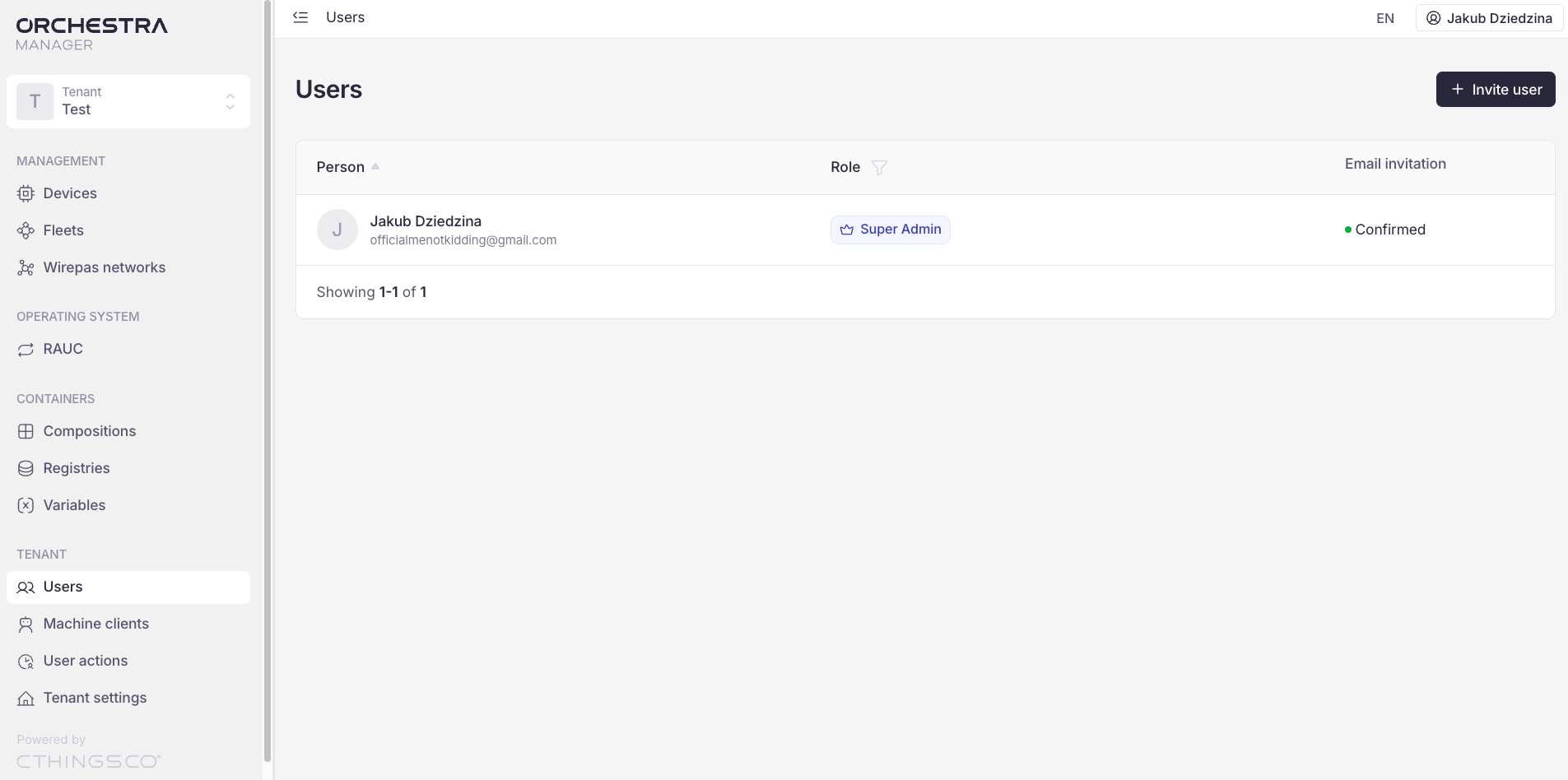
On the Users page you can:
See the users of the tenant
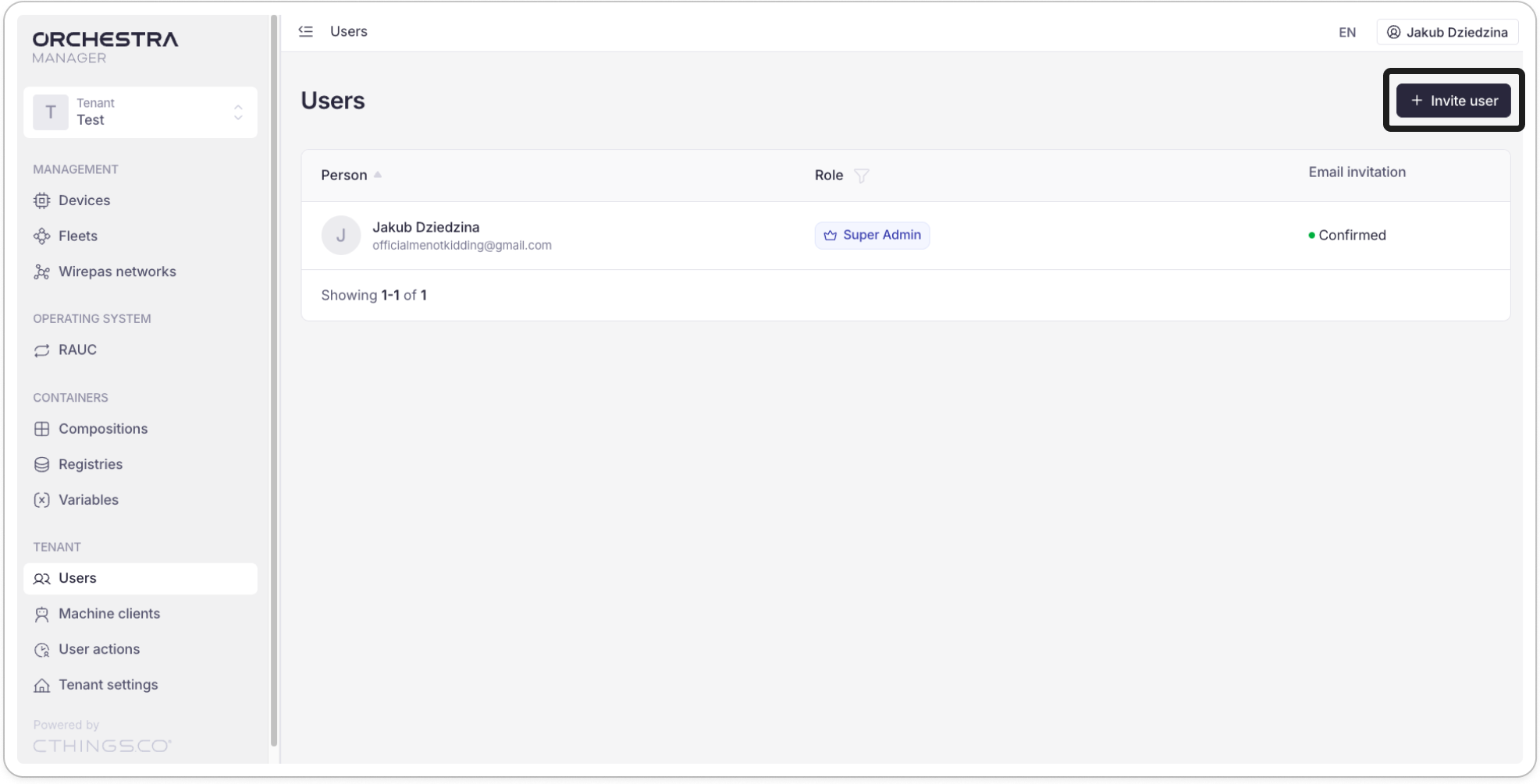
Add users to the tenant
Click Invite user.
In the Invite user window, enter the email address of the user you want to add.
Select one of the four roles.
Click Invite user.
Edit user’s role
On the Users page, click on one of users.
In the Edit window, select the new role.
Click Save.
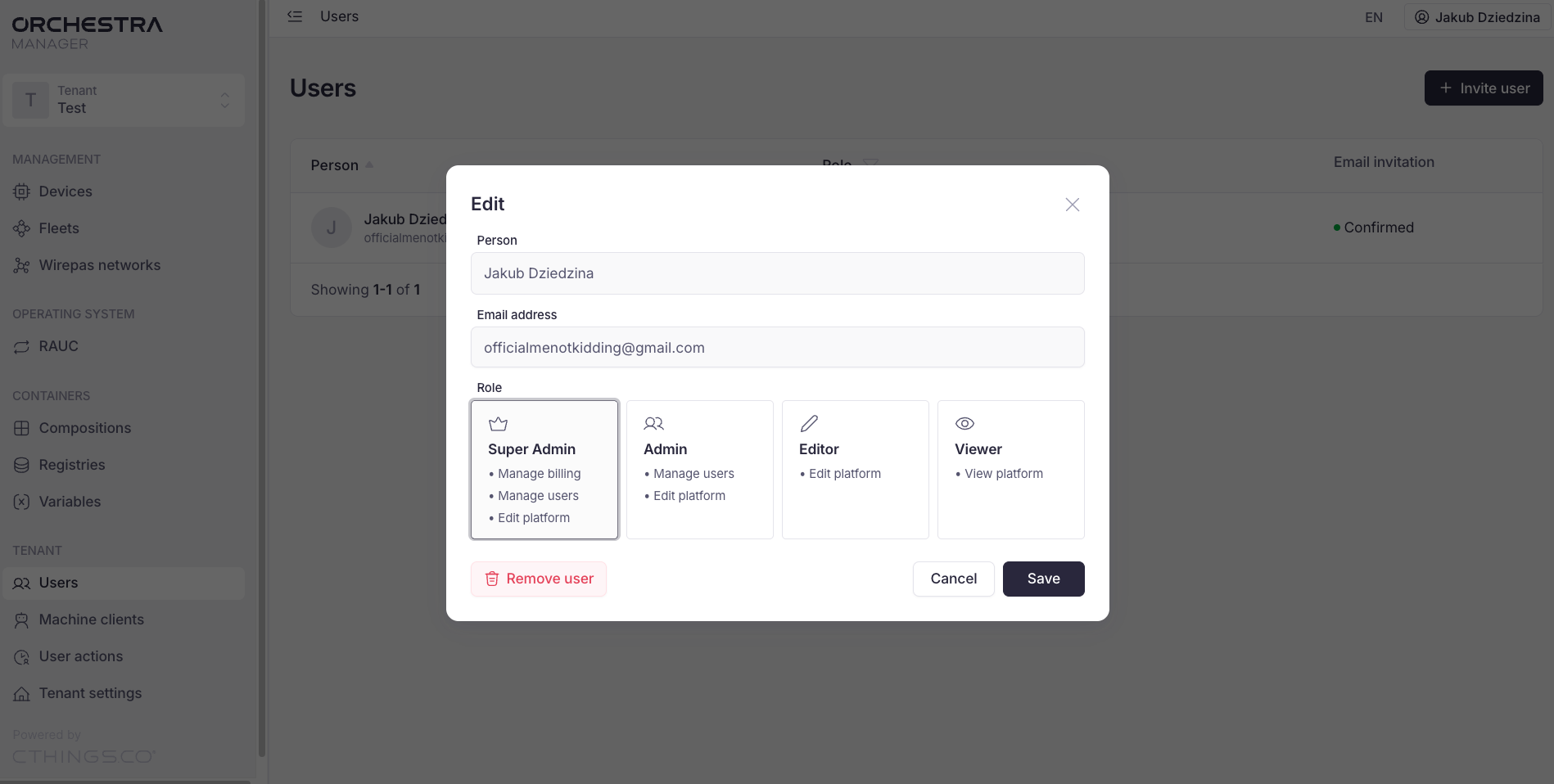
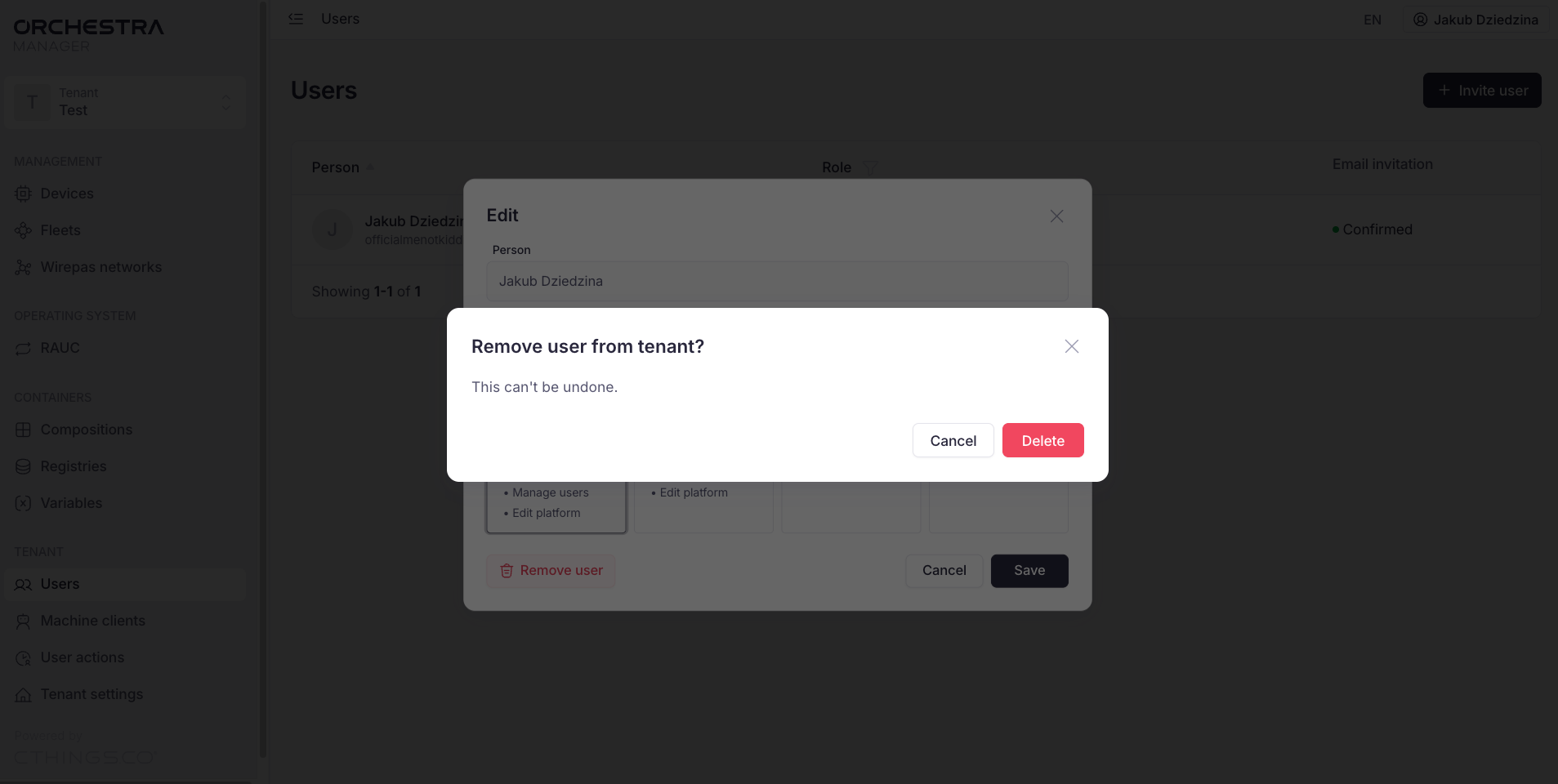
Remove user
On the Users page, click on one of the user.
In the Edit window, click the red Remove user button.
Confirm by clicking the red Delete button.
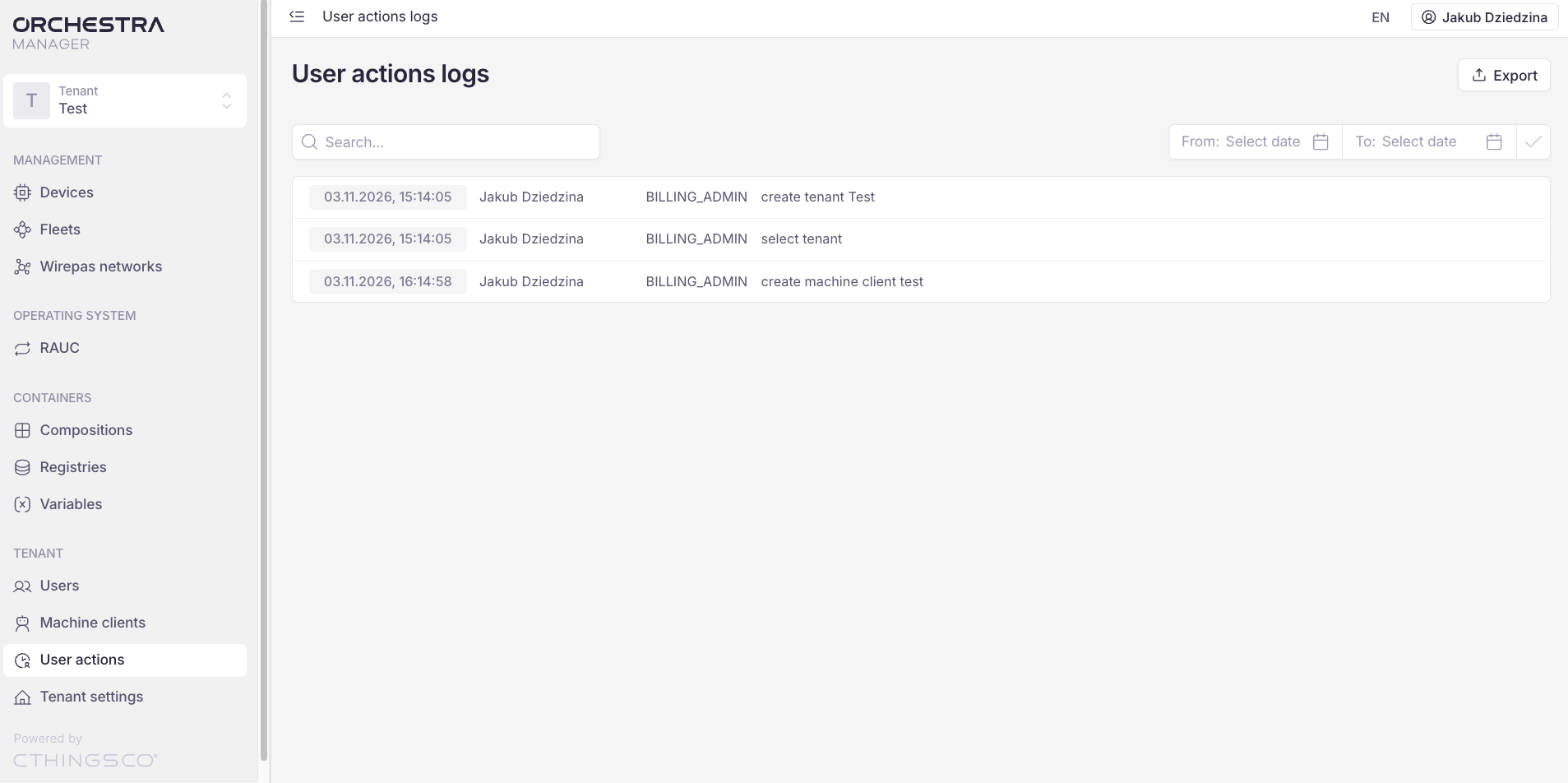
User actions
In the User actions logs user can see actions made in the tenant. You can also:
Show the logs from a period, with From and To dates
Search for specific logs
Export the logs from the selected period with Export